How to find emails for local businesses scraped from google maps in 2026
Match Google Maps listings to websites, enrich owner contacts, verify emails, and export compliant local lead lists.
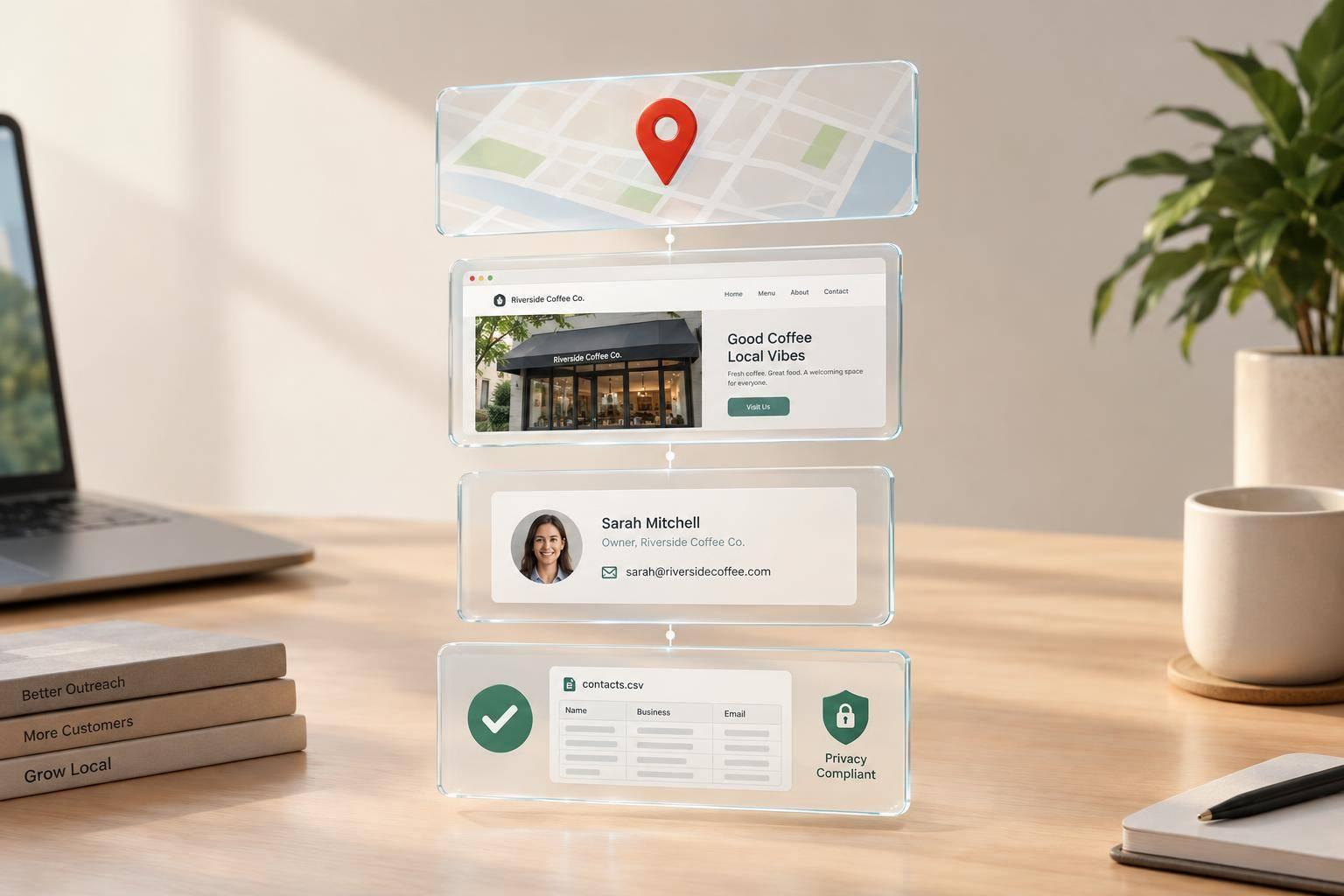
Google Maps listings are a starting point - not a verified email list. To find emails for local businesses in 2026, match each listing to its official website, check published contact pages, and use owner-enrichment tools when needed. Then verify the email and confirm who it belongs to: a deliverable inbox does not prove ownership.
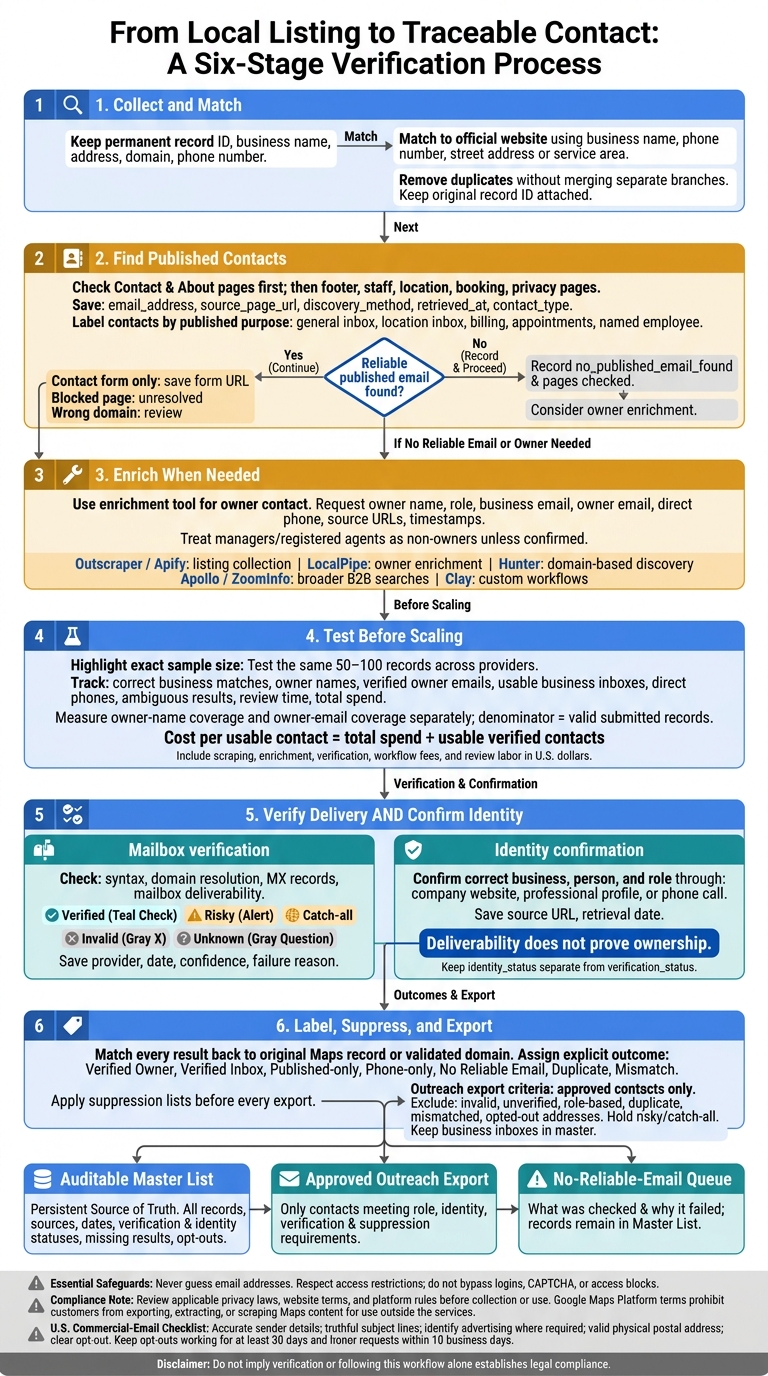
- Collect and match: Keep a permanent record ID, business name, address, domain, and phone number. Remove duplicates without merging separate branches.
- Find contacts: Check business websites first. Consider LocalPipe for owner contacts, Hunter for domain-based searches, or Apollo and ZoomInfo for broader B2B searches. Outscraper and Apify handle listing collection; Clay connects custom workflows.
- Test before paying for scale: Compare providers on the same 50–100 records, measuring correct matches, verified owner emails, and total cost per usable contact.
- Export with care: Keep sources, verification dates, missing-email results, and opt-outs in a master file. Export only approved contacts, and check platform terms, privacy rules, and U.S. commercial-email requirements before use.
The goal is a list that separates verified owners, business inboxes, and records with no reliable email - without guessing addresses.
Google Maps Leads to Verified Emails: 2026 Workflow
2. Find published emails on business websites
Start with the business’s own website before moving to owner enrichment.
Match the website and check contact pages
Before saving an email, compare the website’s business name, phone number, and street address or service area with the Maps record. Google’s guidance stresses consistent business identity and location details.[5]
Check Contact and About pages first. Then review the footer, staff, location, booking, and privacy pages. Search both the rendered page and its source for @, email labels, and contact terms. Reject external booking pages unless they match the official domain.
Save each email's source and contact type
Keep email_address, source_page_url, discovery_method, retrieved_at, and contact_type in separate columns linked to the Maps record. A public inbox is not a confirmed owner contact.
Record the discovery method as visible text, mailto link, page source, or manual review. Label each mailbox by its published purpose: general inbox, location inbox, billing, appointments, or named employee. Don’t mark an address as verified until a separate verification step confirms it.
If you find no email, record no_published_email_found and list the pages checked. Don’t guess an address from the domain or a person’s name. Keep this label with the Maps record so missing data stays visible in the lead list. Then check forms, redirects, and blocked pages.
Review contact forms, blocked pages, and wrong domains
For form-only sites, save the form URL and mark the record contact form only. Don’t submit test messages to find recipients. Allow standard JavaScript rendering to finish before marking a page empty.
Manually review addresses shown only in images, label that text as image_text, and double-check the transcription. Respect access restrictions: don’t bypass logins, CAPTCHA, or access blocks.[2][4]
After redirects, record both the original and final domains. Flag parked domains, unrelated businesses, and directory redirects as wrong_domain or manual_review_required. If no reliable published email exists, send the record to LocalPipe or another owner-enrichment tool. Mark inaccessible pages as unresolved.
3. Find owner emails with LocalPipe or other tools
Compare LocalPipe, scrapers, and email tools
Once your Maps list is clean, choose a tool based on the contacts you need - not export size. The goal is verified owner or business emails matched to the right local businesses.
| Tool | Freshness | Owner identification | Email coverage | Direct phone | Verification | API access | Best use |
|---|---|---|---|---|---|---|---|
| LocalPipe | Live/on-demand | Built-in | Business and owner emails | Owner numbers | See below | REST API, webhooks, Clay integration | Local SMB owners |
| Outscraper / Apify | Live listing scrape; actor-dependent | Requires enrichment | Published emails; enrichment-dependent | Usually listing phone | Workflow-dependent | Available | Listing research and custom scraping |
| Apollo / ZoomInfo and other B2B databases | Source-dependent | Local-owner coverage varies | Where covered | Provider-dependent | Provider-dependent | Plan-dependent | Corporate targeting |
| Hunter | Source-dependent | Not ownership proof | Domain-based discovery | Not its focus | Email verifier | Available | Matched-domain searches |
| DIY Clay | Connected-source-dependent | Custom workflow | Provider-dependent | Provider-dependent | Must be configured | Connected APIs | Custom enrichment |
Use LocalPipe to identify owners and find contacts
For local SMB owner data, LocalPipe is the most direct option to test.
Search by business type and location, or submit existing records through its API or Clay workflow. Include a stable record ID, business name, full address, domain, phone, and Maps place ID. Request separate fields for owner name, role, business email, owner email, and direct phone, along with source URLs and timestamps.
LocalPipe uses websites and public business sources. Treat managers and registered agents as non-owner contacts unless you confirm ownership.[6][7]
LocalPipe reports triple email verification and charges credits only for successful finds.[6][7] It also reports higher owner-name coverage and lower bounce rates than DIY Clay workflows. Treat those comparisons as vendor-reported, and check business match, owner identity, and mailbox verification separately.
Test a sample and calculate cost per usable contact
Test 50–100 records from your own list before spending more. Use the same records across providers so you can compare results directly.
Track correct business matches, owner names, verified owner emails, usable business inboxes, direct phones, ambiguous results, review time, and total spend. Calculate owner-name coverage and owner-email coverage separately, using valid submitted records as the denominator.
Count a contact as usable only if it meets your role, identity, and verification requirements. Keep unsuccessful searches in your records, too.
Cost per usable contact = total spend ÷ usable verified contacts.
Include scraping, enrichment, verification, workflow fees, and review labor in U.S. dollars. Before budgeting, confirm current credit prices and each provider’s definition of a successful find.[6][7][8]
Before automating, test retries, duplicates, credit accounting, and late responses. Keep every result tied to its original record ID.[6][7][9]
4. Verify emails and export your lead list
Check email delivery and confirm the contact's identity
Trim whitespace, preserve the original email, and save a normalized copy for matching. Check syntax, domain resolution, MX records, and mailbox deliverability. Record the verification provider, date, confidence, and failure reason. Then confirm that the mailbox belongs to the right local business contact.
Label each result verified, risky, catch-all, invalid, or unknown. A correctly formatted address does not prove that email will reach the inbox.[11][12][13]
Deliverability does not prove ownership. Keep identity_status separate from verification_status and role-based account flags. Confirm the person’s role through the company website, a professional profile, or a phone call. Save the source URL and retrieval date.
Match results to listings and label missing emails
Match each checked result to its original Maps listing before deciding whether to include it in the outreach export. Use the place ID or your original record key. If neither is available, use a validated domain backed by location evidence.
Never let a shared domain override conflicting location details. Manually review businesses with the same name or multiple locations. Flag duplicates, but keep their linked locations and source history.
Keep all records in the master file, including matching identifiers, business or owner email, contact role, source URL and retrieval date, verification status and date, identity status, provider confidence and failure reason, duplicate and opt-out flags, and export eligibility.
Every record - whether its email is verified or missing - must stay linked to its original Maps record. Assign an explicit outcome: verified owner, verified inbox, published-only, phone-only, no reliable email, duplicate, or mismatch. Never fill gaps with guessed addresses.
Apply suppression rules and U.S. email requirements
Keep the master file intact. Add only approved contacts to the outreach export. Exclude invalid, unverified, role-based, duplicate, mismatched, and opted-out addresses. Hold risky and catch-all results for review, and keep business inboxes in the master file for a separate workflow.
For commercial email sent from the outreach export, use accurate sender details and truthful subject lines. Identify advertising where required, and include a valid physical postal address and a clear opt-out. Keep opt-outs working for at least 30 days and honor requests within 10 business days.[1][3] Apply suppression lists before every export.
Before use, review applicable privacy laws, website terms, and platform rules. Google Maps Platform terms prohibit customers from exporting, extracting, or scraping Maps content for use outside the services. Check your collection method and intended use before releasing the outreach export.[10]
5. Conclusion: Keep verified contacts and missing data clear
Keep each record linked to its source business across three outputs: an auditable master list, an approved outreach export, and a no-reliable-email queue that records what was checked and why it failed.
Use LocalPipe for owner enrichment, Outscraper or Apify to collect raw listings, and Clay for custom workflows. This ensures you build local business lead lists faster by filtering before you scrape.
Compare tools by verified local-owner coverage, traceable sources, and cost per usable contact. Calculate that cost by dividing total costs by the number of contacts that pass matching, identity, and verification checks.
FAQs
How often should I reverify business emails?
Verify business emails before every outreach campaign to help keep bounce rates below 1%. Small businesses can change owners or close, leaving you with outdated records that lead to more bounces.
LocalPipe runs live, on-demand searches instead of relying on static database records. Use triple verification and remove invalid or unknown addresses before sending to protect your email deliverability.
How do I distinguish franchise owners from corporate contacts?
Look beyond public business listings. Raw scrapers like Outscraper and Apify provide business-level data, but they don’t reliably identify individual owners. Enrichment platforms like LocalPipe identify owners by cross-referencing live sources, including business websites, social media, and Secretary of State filings.
Store owner-specific contact information in separate fields from generic business inboxes. That way, your outreach targets the decision-maker - not a corporate representative.
Does a public email address mean I can send marketing emails?
No. A public email address doesn’t mean you have consent to send marketing emails. Follow applicable laws, including the CAN-SPAM Act and any relevant privacy, telemarketing, or consent rules. Use suppression lists, honor opt-outs, and check your legal obligations before reaching out.
Mailbox verification only confirms that an address exists and can receive mail. It does not give you permission to send marketing emails.